

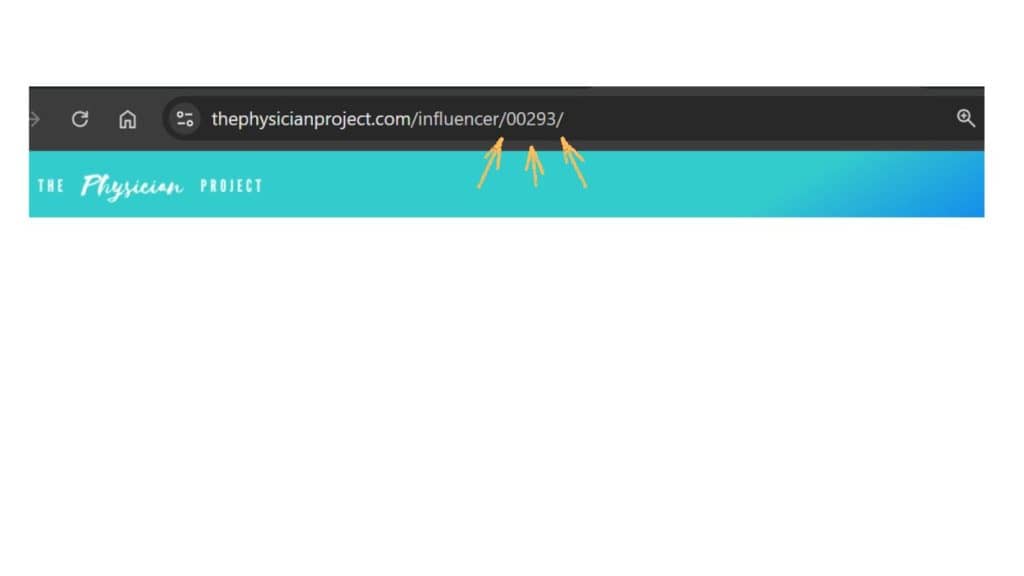
Your Influencer ID is embedded in the URL of all your pages on The Physician Project.
Once you’ve found your Influencer ID, you can find all your content.
Your Influencer ID is a unique 5-digit number that appears in every URL associated with your content.
If your listing page is: thephysicianproject.com/listing/00293-01
Your Influencer ID = 00293
If your influencer profile page is: thephysicianproject.com/influencer/00293
Your Influencer ID = 00293
With your Influencer ID, you can locate your profile page and all your listings on The Physician Project. Your events are found on your listing pages, and your Physician FAQ responses are on your profile page.
Enter your 5-digit Influencer ID to open your profile page.
Once there, you’ll find your listings at the top.
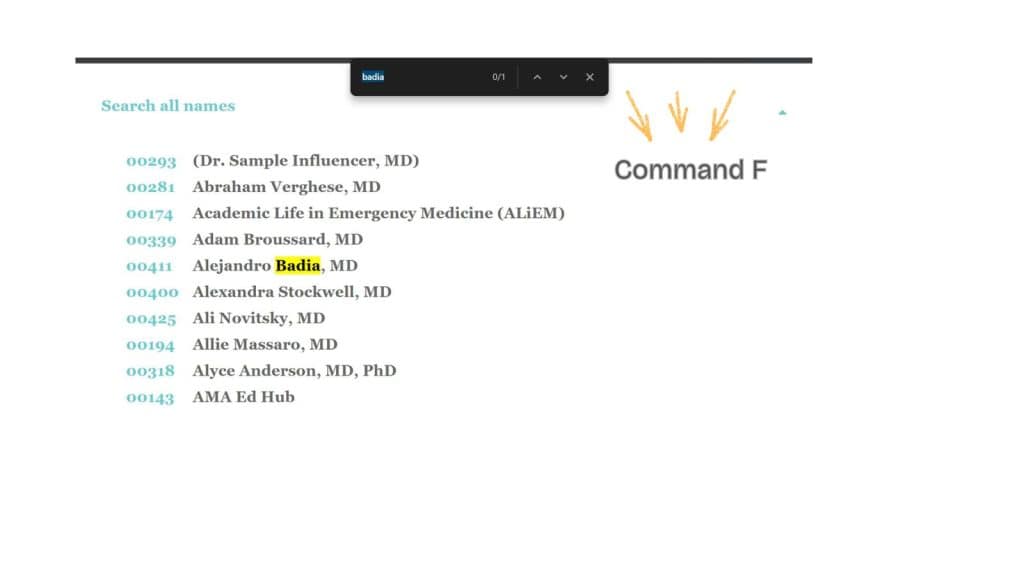
1. Open the “Search all names” tab below.
2. Find your name using your browser’s search function (Command/Control + F).
3. Click the ID next to your name to open your profile page.
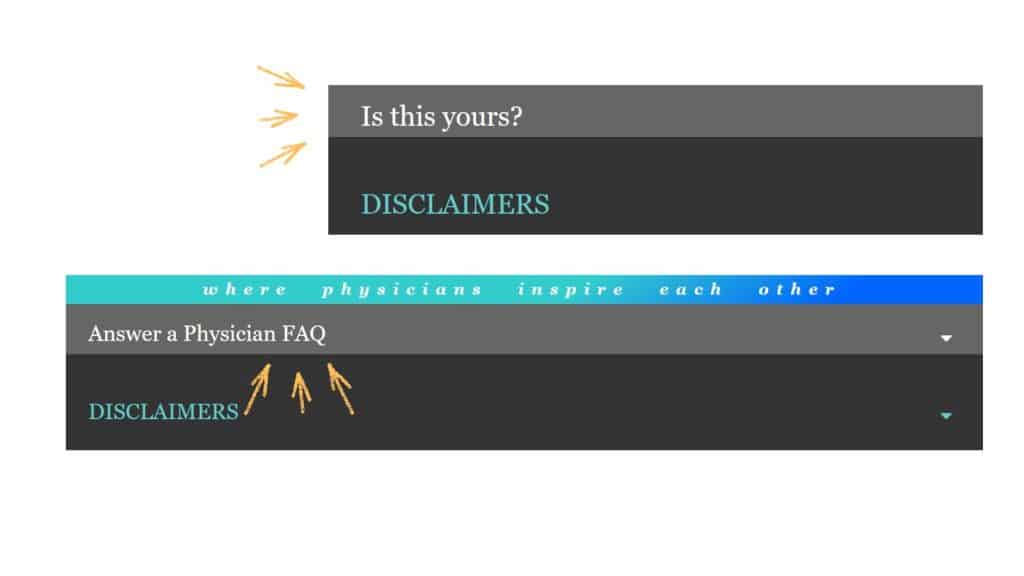
The gray banner at the bottom of most pages is the influencer access panel.
Click it to reveal your options to edit or add to that page.
The gray banner is how influencers interact with The Physician Project. No login or password is required.
Just click the gray banner and follow the prompts.
What the gray banner says and does:
On listing pages and influencer profile pages:
On category and topic pages:
When in doubt, scroll to the bottom of a page and look for a gray banner.
1. Find your listing page.
2. Scroll down to the gray banner labeled “Is this yours?”
3. Click to expand to the Influencer Access panel, then follow the prompts for “Edit this Listing.”
Feel free to update your listing pages at any time.
While the bare minimum (listing URL, listing name, and influencer name) keeps your page live, completed listings perform better.
See a completed LISTING PAGE here.
How to edit:
1. Navigate to the listing page you want to edit.
2. Scroll to the bottom of the page.
3. Click the gray banner labeled “Is this yours?” to expand the Influencer Access panel.
4. Select the type of edit you’d like to make.
5. Confirm your email and follow the prompts.
What to edit:
Listing web address (URL)
Listing name
Category and topics
Description (max 1500 char)
Image (provide URL of a PNG, JPEG, or WebP image)
Social media links
Podcast links
Publication details (date, journal citation)
The administrator reviews form submissions. Accepted edits are published within a week.
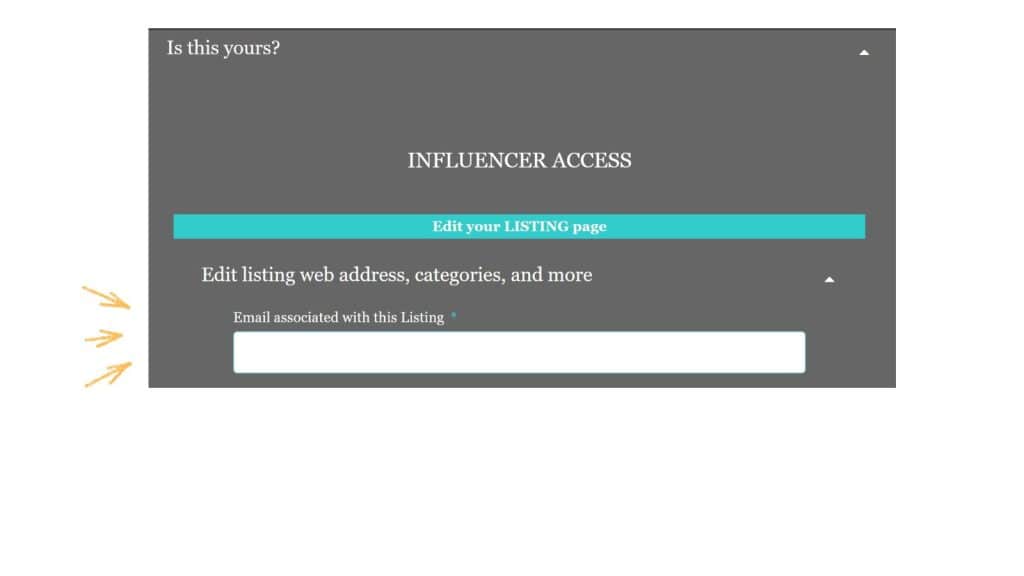
1. Find your influencer profile page.
2. Scroll down to the gray banner labeled “Is this yours?”
3. Click to expand to the Influencer Access panel, then follow the prompts.
Your influencer profile page is the hub that connects all your listings. While a basic profile works, completed profiles perform better.
See a completed PROFILE PAGE
How to edit:
1. Navigate to your influencer profile page.
2. Scroll to the bottom of the page.
3. Click the gray banner labeled “Is this yours?” to expand the Influencer Access panel.
4. Select the specific edit you’d like to make.
5. Confirm your email and follow the prompts.
What to edit:
Your name and credentials/degrees
Bio (max 1500 char)
Headshot (provide URL of a PNG, JPEG, or WebP image) or company logo if you prefer to remain anonymous
Personal social media links (optional)
The administrator reviews all form submissions. Accepted edits are published within a week.
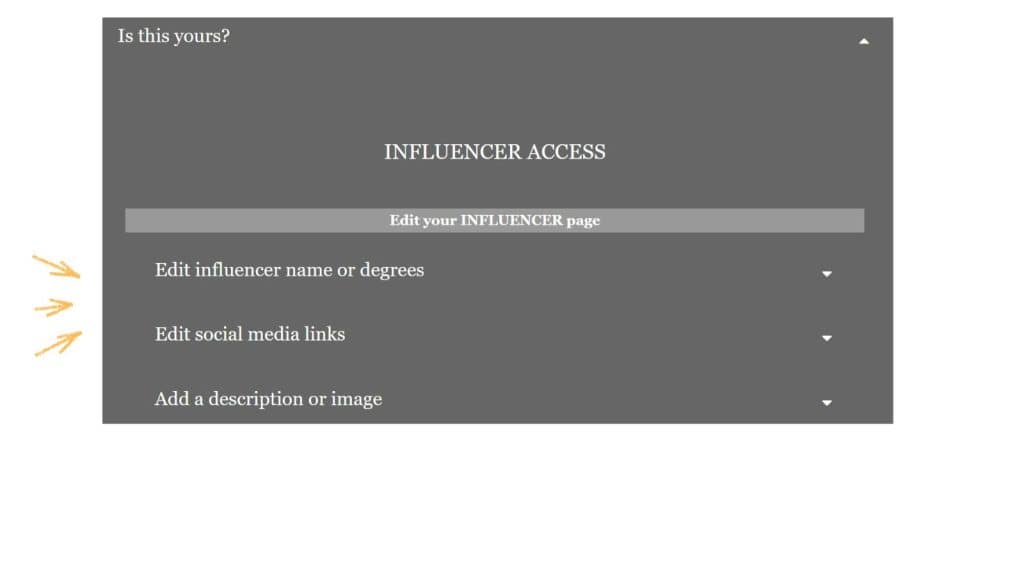
To edit your event: submit a new event form with the updated information
To remove your event: Please CONTACT US
Events cannot be modified once published.
If you need to update any event detail, you’ll need to resubmit the event.
See “How to add a new event” below for step-by-step instructions.
To modify your FAQ response: resubmit your response
To remove your FAQ response: please CONTACT US
If you wish to edit your response, resubmit it. Your new response will replace the old one.
See “How to answer a Physician FAQ” below for step-by-step instructions.
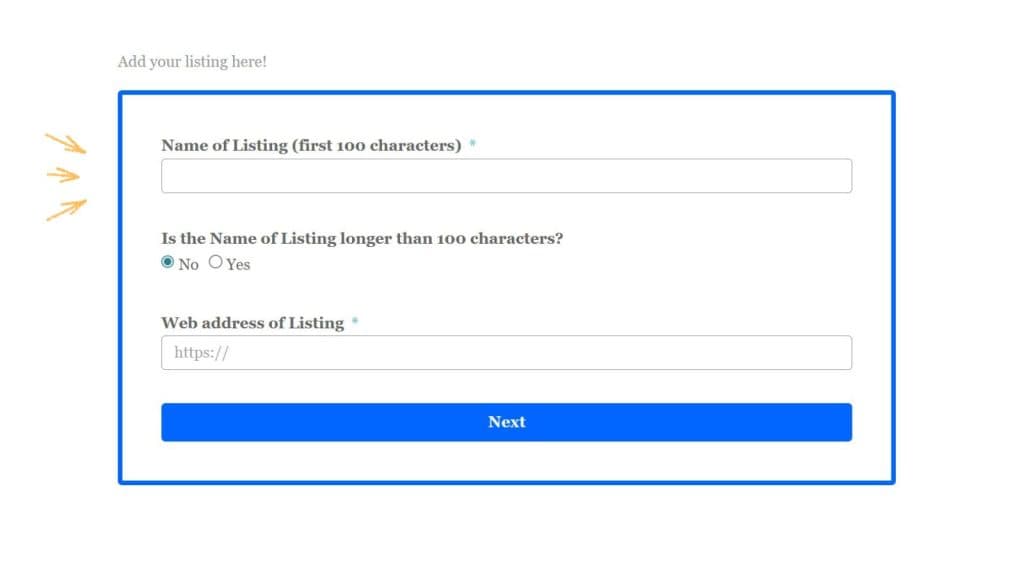
Fill out the form outlined in blue on the SHARE page.
Complete a form for each of your listings (coaching practice, podcast, course, etc.) Each listing gets its own dedicated page.
Each influencer can have up to 10 separate listings on The Physician Project.
Every new offering you create gets its own page with its own category and two topic placements, which means more ways for physicians to discover your work.
What counts as a listing?
Choose the kind of listing that best describes what you’d like to add to The Physician Project:
SERVICES: One-on-one coaching, group coaching programs, consulting services, or mentorship programs for physicians
COURSES: Online courses, in-person retreats, workshops, conferences, or certification programs for physicians
BLOGS & PODCASTS: Written or audio content you create that features physician voices
NETWORKS: Communities for physicians to connect, such as mentorship programs, peer support groups, mastermind groups, or professional networks
BOOKS/LITERATURE: Published works for a physician audience, including but not limited to books, journal articles, white papers, or long-form publications
PRODUCTS: Items for the general public (not just physicians), such as books for patients, wellness products, or apps created by physicians
PRACTICES: Clinical practices or consulting services for patients or the public (beta feature)
What the form asks for:
Listing name: What you call this specific offering
Influencer name: Who created it (you or your organization)
URL: Where it lives online
Email: For verification only (stays private)
Kind of Listing: Is it a service for physicians or a product for the general public, for example
Category & topics: How to classify your listing, refer to the options on the LEARN page
Listing name vs Influencer name
The listing name and influencer name are usually different, e.g., an individual physician with their own product/service.
Listing name: “Physician Success Coaching”
Influencer name: “Dr. Jada Medica”
Sometimes they’re the same, e.g., an organization with a flagship product.
Listing name: “Physician Empowerment Network”
Influencer name: “Physician Empowerment Network”
To add a new listing: Visit the SHARE page and complete the form outlined in blue.
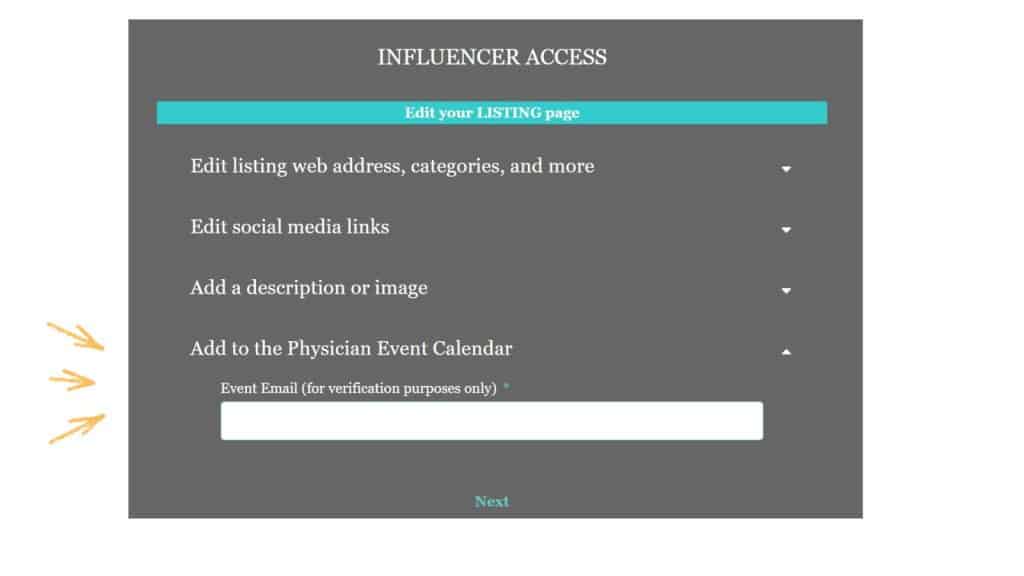
Find your listing page, scroll to the gray banner labeled “Is this yours?”
Click to expand, then select “Add to the Physician Event Calendar.”
Events are one of the best ways to get timely visibility… for free!
Events appear on multiple high-traffic pages:
On category and topic pages: Your event is assigned one category and one topic, and displays on 1 of 7 category pages AND 1 of 22 topic pages
On the Physician Event Calendar: Ten upcoming events rotate on this high-visibility NAVIGATION PAGE
On your listing page: All your events appear together on your LISTING PAGE
Steps to add an event:
1. Navigate to your listing page (refer to the first FAQs above.)
2. Scroll to the bottom of the page.
3. Click the gray banner labeled “Is this yours?” to expand your options.
4. Click “Add to the Physician Event Calendar.”
5. Enter your email and follow the prompts.
What event details to add:
Required details:
Name of event (max 100 characters)
Event URL
Event date
Event venue (virtual, in-person, or both)
CME eligible (yes/no/unknown)
Category and topic
Event image (allow The Physician Project to copy/upload your image, or use a stock photo)
Email of the person/company responsible for the event (for internal verification, not made public)
Optional details:
Event highlights/schedule (max 500 characters)
Event description (max 1,500 characters)
Event end date (if multiple days)
Date registration begins
Date registration ends
Social media link for the event
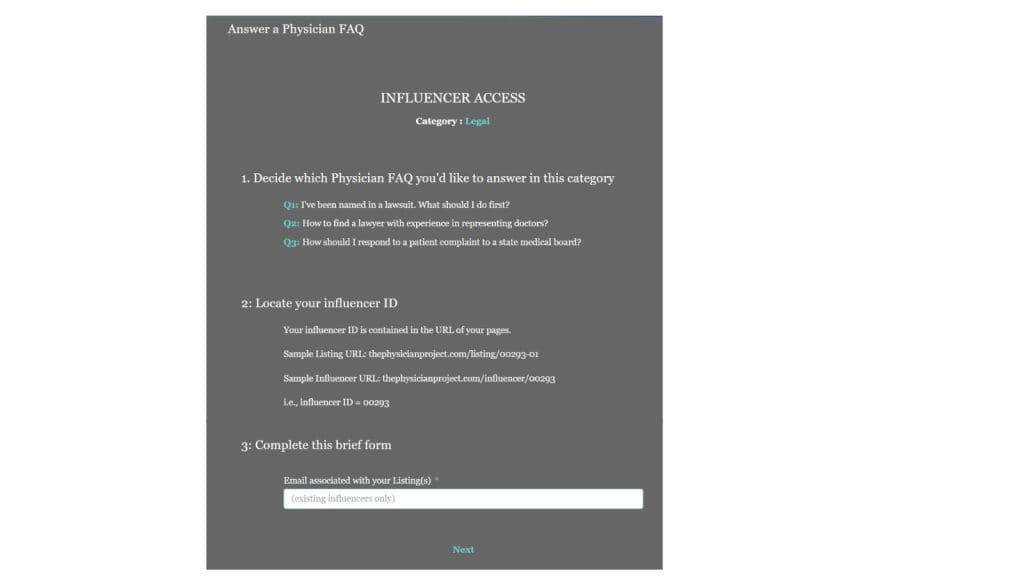
1. Visit any category or topic page, such as the CLINICAL category.
2. Scroll down to the gray banner labeled “Answer a Physician FAQ.”
3. Click to expand, then follow the prompts.
Answering a Physician FAQ positions you as a trusted resource.
It’s content marketing that builds credibility without the time investment of writing a full blog post.
Each of the 7 category pages and 22 topic pages features three Physician FAQs that you can answer. Your expertise appears where physicians actively search for answers.
You’re welcome to answer as many of the 87 FAQs as you’d like… at no cost.
e.g., CLINICAL Physician FAQs
Q1: Is there a HIPAA-compliant way to respond to online patient reviews?
Q2: High-quality CME with limited bias is difficult to find. What sources of CME do physicians recommend?
Q3: How are employed physicians using HIPAA-compliant charting and transcribing tools?
Steps to answer a Physician FAQ:
1. Browse the categories and topics shown on the LEARN page.
2. Select the category/topic that interests you. View its page to see its three Physician FAQs.
3. Scroll to the bottom of the page to the gray bar that says “Answer a Physician FAQ.”
4. Follow the prompts and select the FAQ you’d like to answer. You’ll need the following info:
Your Influencer ID (see the very first FAQs at the top of this page)
Title of FAQ response (max 200 char)
Text of FAQ response (max 1500 char)
Your email (for internal verification only)
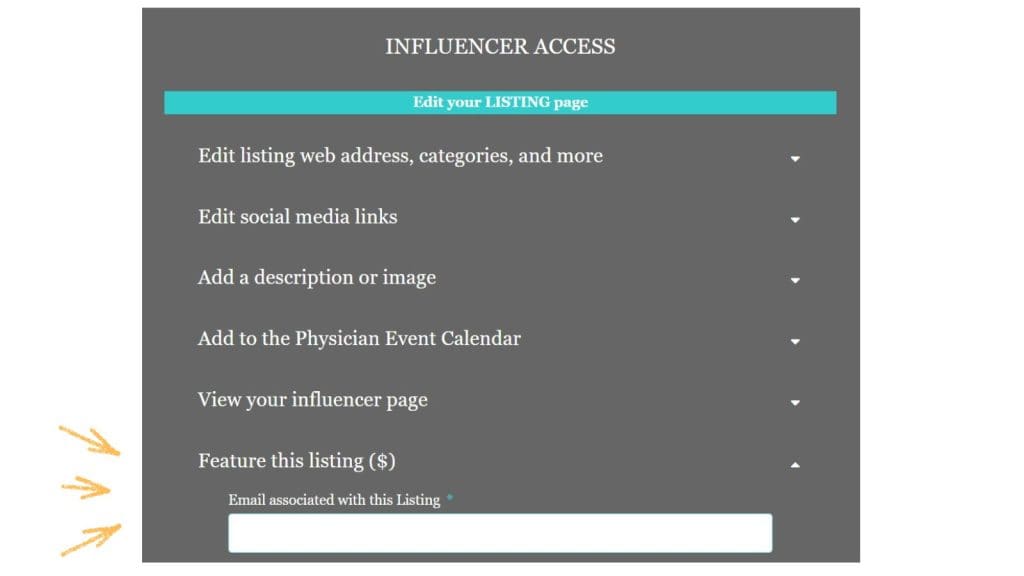
1. Locate the listing you’d like to feature.
2. Scroll down to the gray banner labeled “Is this yours?”
3. Click and select “Feature This Listing.” Follow the prompts, and you’ll be redirected to the online store.
A featured listing appears at the top of one page for one month.
There are 7 category pages and 22 topic pages. Each of these 29 pages has three slots per month.
Each page and each month is purchased separately.
Each listing appears on 3 pages
If your listing is in the LEGAL category and ACADEMIA and TRAINEES topics, you have three options for where to feature this listing.
Once you check the availability, you might find that the Legal category has no availability until November 2026, May is available in the Academia topic, and June and July in the Trainees topic.
You decide which of these months to purchase. Each is sold separately.
Steps to feature your listing:
1. Locate the listing you’d like to feature (see the first FAQs above for help.)
2. Scroll down to the gray banner “Is this Yours?”
3. Click to expand and select “Feature this Listing.”
4. Enter your email and follow the prompts.
5. Take note of your listing ID and current category/topics.
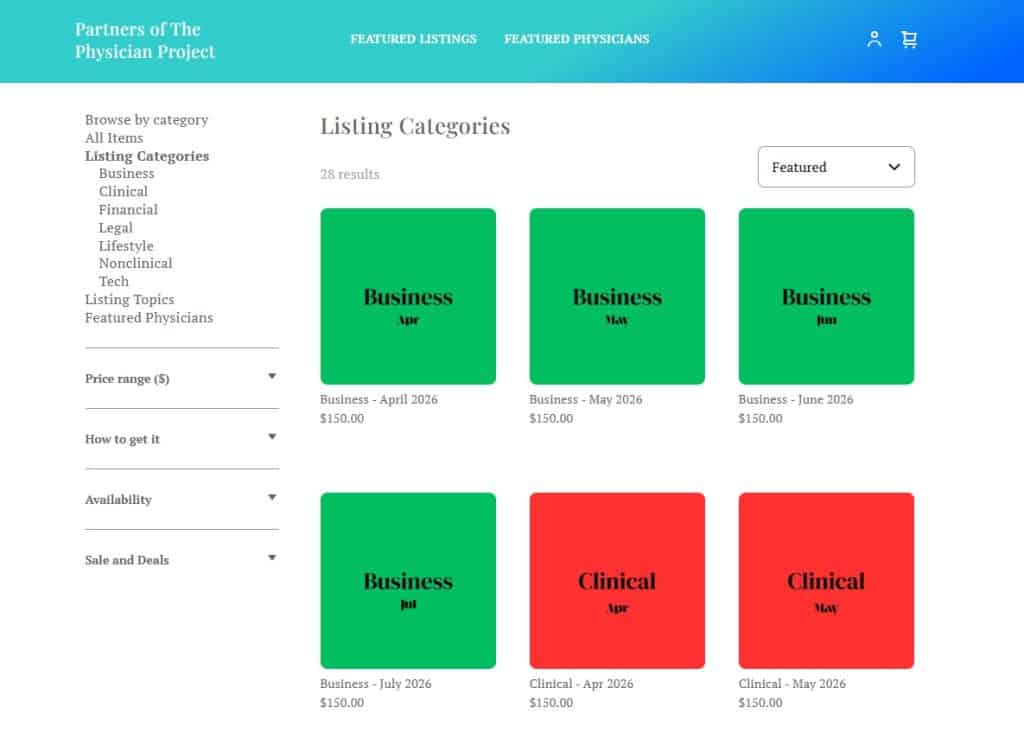
6. You’ll be directed to the online store called Partners of The Physician Project.
Complete your purchase:
Once in the online store, browse the Category and Topic folders to see what is available.
Select an item (e.g., Academia in November 2026).
Enter your Listing ID.
Add it to your cart, then proceed to checkout.
1. Locate your influencer profile page.
2. Scroll down to the gray banner labeled “Is this yours?”
3. Click and select “Feature this profile.”
4. Follow the prompts, and take note of your Influencer ID.
5. You’ll be redirected to the online store.
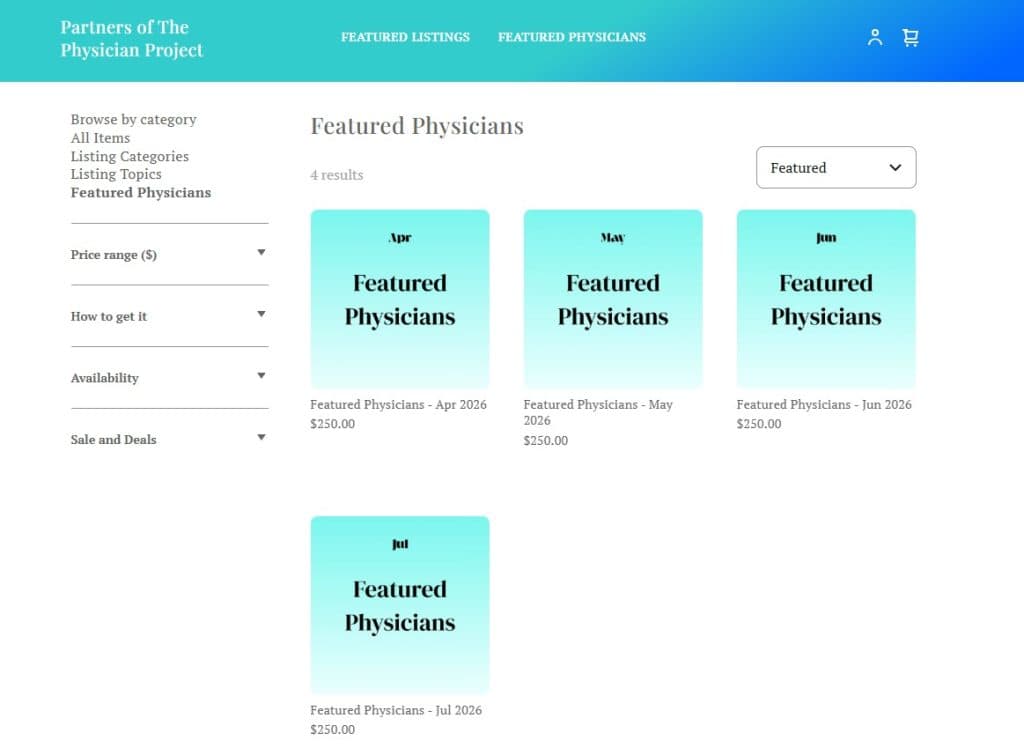
6. Once in the online store, select the “Featured Physicians” folder to browse availability and complete your purchase
Only five physicians are featured each month at the very top of the MAIN NAVIGATION page, where physicians start their browsing journey.
Feature your profile in the months that matter most to you.
Steps to feature your profile:
1. Navigate to your influencer profile page (see the first FAQs above for help.)
2. Scroll down to the gray banner labeled “Is this yours?”
3. Click and select “Feature this profile.”
4. Enter your email and follow the prompts.
5. Take note of your Influencer ID.
6. You’ll be redirected to the online store called Partners of The Physician Project
Complete your purchase:
Once in the online store, open the Featured Physicians folder.
Select an item (e.g., November 2026).
Enter your Influencer ID.
Add it to your cart, then proceed to checkout.
What can we clarify?
Please CONTACT US with questions.